Five different apps to manage clients, tasks, invoices, and deadlines. That was my reality as a freelancer, until I discovered a better way.
Notion isn’t just another productivity tool. It’s a single, flexible workspace where you can build a custom CRM, track projects, automate recurring tasks, and even generate invoices. All without coding or paying for expensive SaaS subscriptions.
In this step‑by‑step guide, I’ll walk you through the exact setup I use to run my freelance business. You’ll learn to create a client database, organize tasks by priority, plan your week in under 10 minutes, and integrate with tools like Google Calendar or Zapier.
By the end, you’ll have a fully functional Notion system tailored to your freelance workflow. No fluff, no unnecessary features, just what works.
Let’s dive in.
Why Notion is a Game‑Changer for Freelancers
Most freelancers start with a simple spreadsheet for clients, a to‑do list for tasks, and maybe a calendar for deadlines. But as you grow, that setup breaks.
Notion solves this by combining three essential functions into one flexible tool:
- Database management (clients, projects, invoices)
- Task tracking (Kanban boards, calendars, lists)
- Documentation (notes, contracts, templates)
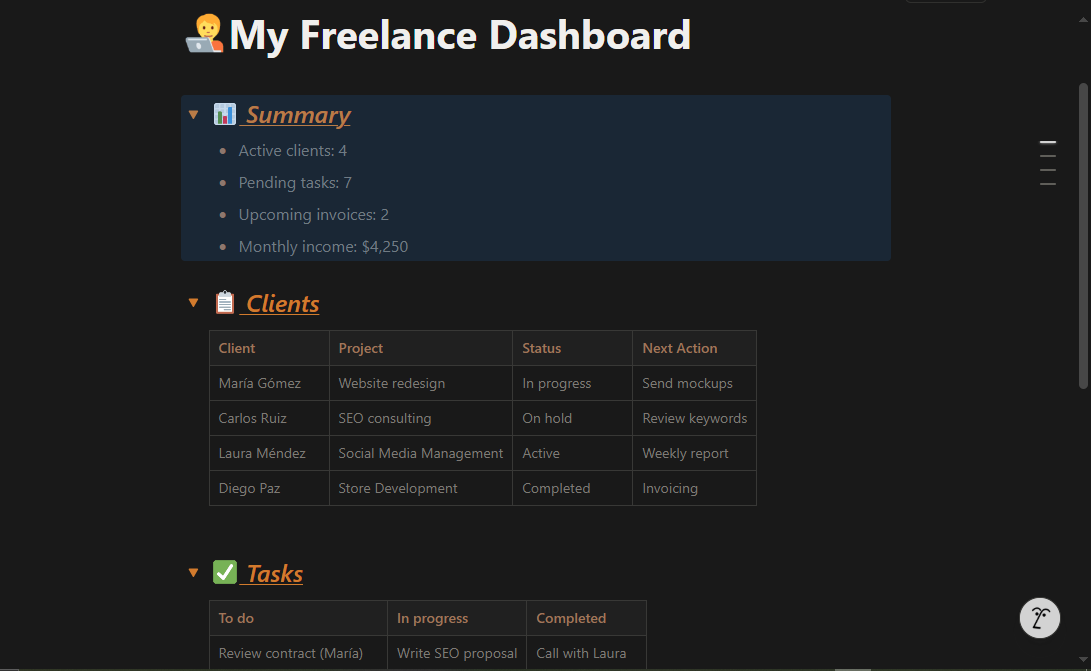
Step 1 – Setting Up Your Free Notion Account
The free plan is more than enough for individual freelancers. Here’s how to create your account:
- Go to notion.so
- Click “Sign up”
- Choose email or Google
- Verify your email
- Set a password
- Select “Student” or “Freelancer”
- Enter your workspace
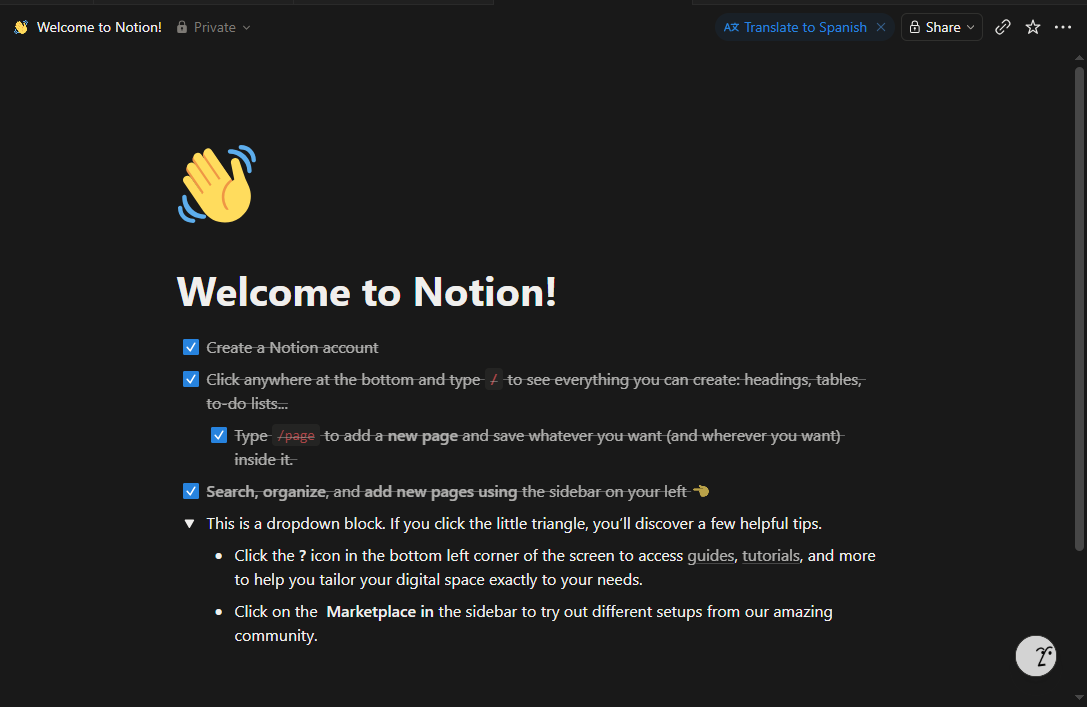
Step 2 – Creating Your Freelance Workspace
Now let’s build the structure:
- Rename “Untitled” to “Freelance Dashboard”
- Create subpages: Clients, Tasks, Invoices, Weekly Schedule
- Verify they appear nested in the sidebar
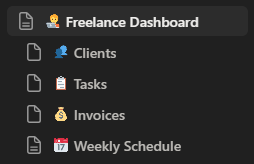
Step 3 – Building a Client Database (Your CRM)
Turn the “Clients” page into a database:
- Open “Clients”
- Type
/database→ Table – Full page - Rename columns
- Add new properties
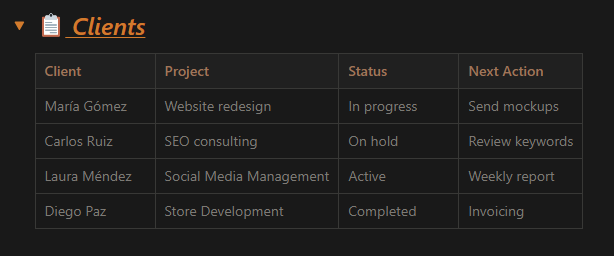
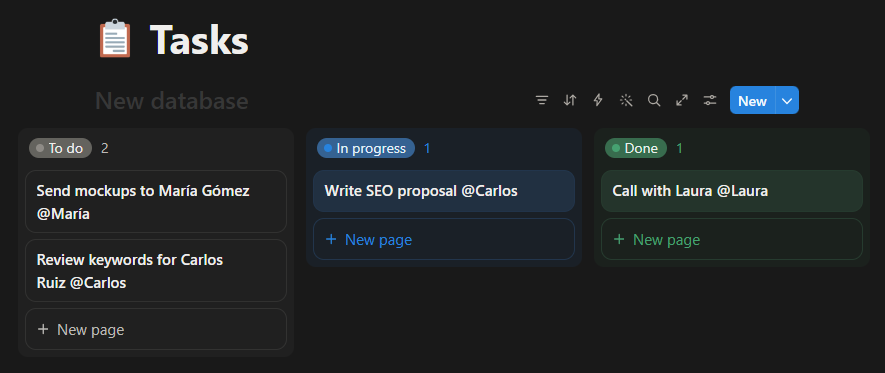
Step 4 – Task Management with a Kanban Board
Create a Trello‑style board inside Notion:
- Open “Tasks”
- Type
/database→ Board view - Rename columns
- Add tasks and link clients using @
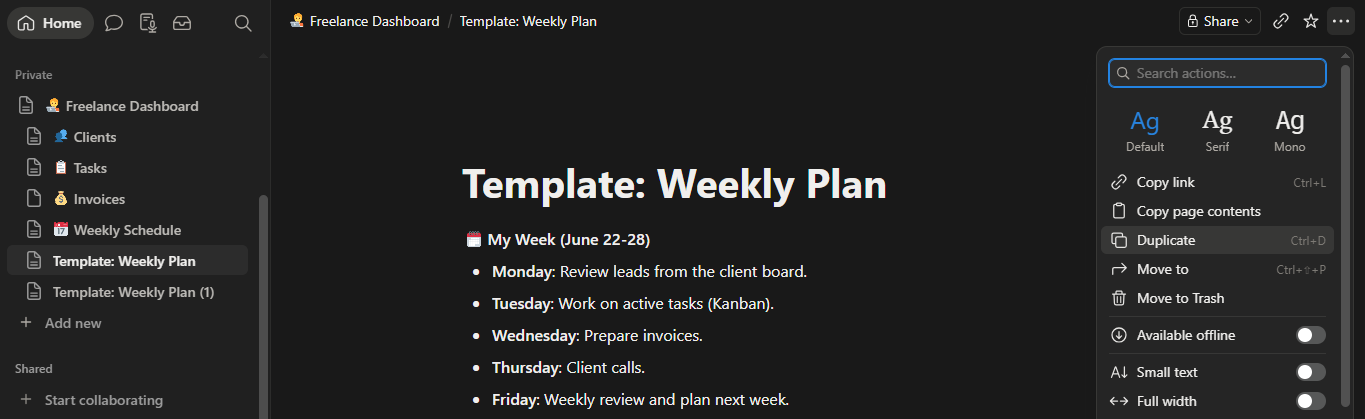
Step 5 – Recurring Weekly Planning
Create a reusable weekly template:
- Open “Weekly Schedule”
- Create “Weekly Template”
- Design your ideal week
- Duplicate it every Sunday
Step 6 – Recommended Notion Templates
Useful templates for freelancers:
- FreelanceKit – Client tracker, invoice builder, proposals
- Solopreneur Toolkit – 100+ curated tools
- Freelance Designer OS – For creatives
Conclusion
You now have a complete freelance system inside Notion. Start simple, refine over time, and enjoy the clarity of a unified workspace.